I spent the last few months testing and researching best computer for AI workload — running LLMs, fine-tuning models, training on custom datasets. The marketing noise around “AI PCs” is deafening right now. Every laptop has an NPU sticker and every spec sheet screams artificial intelligence.
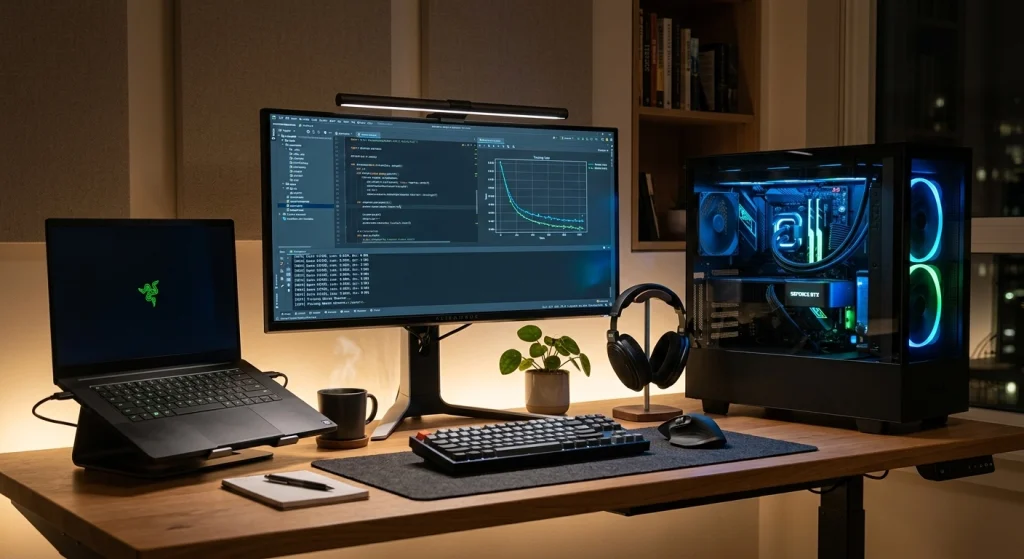
But here’s what I found: most of that marketing is irrelevant if you’re doing real AI development. What actually matters is GPU memory, raw compute, and whether your machine can sustain heavy workloads without throttling.
This guide cuts through the noise. I’ll recommend specific laptops and desktops available in the US market right now, explain exactly what workloads each one handles, and give you the honest reasoning on why I’d pick one over another.
What Is an AI Workload?
An AI workload is any computational task involving training, fine-tuning, or running inference on machine learning models — from local LLM inference to deep learning training on custom datasets. These tasks demand GPU-accelerated computing with high memory bandwidth, distinguishing them from general-purpose computing.
The range is wide. Running a quantized 7B parameter model locally is an AI workload. So is fine-tuning a vision transformer on 50,000 images. The hardware you need depends entirely on where you fall on that spectrum.
Start With Your Workload, Not the Hardware
I’ve seen too many people buy a $4,000 machine for work that a $1,500 laptop handles perfectly. Before looking at specs, figure out which tier you fall into.
| Workload Tier | What You’re Doing | Key Requirement |
|---|---|---|
| Inference & Prototyping | Running local LLMs (7B–13B), testing models, development workflows | 16GB+ VRAM or 32GB+ unified memory |
| Mid-Level Training | Fine-tuning models with LoRA, training on medium datasets, computer vision | 16GB VRAM minimum, 64GB system RAM |
| Heavy Training | Full fine-tuning of large models, training from scratch, multi-hour sessions | 24–32GB VRAM, 128GB RAM, sustained cooling |
This table drives every recommendation below. Match your workload first, then find the best price-to-performance ratio within that tier.
The Hardware That Actually Matters for AI
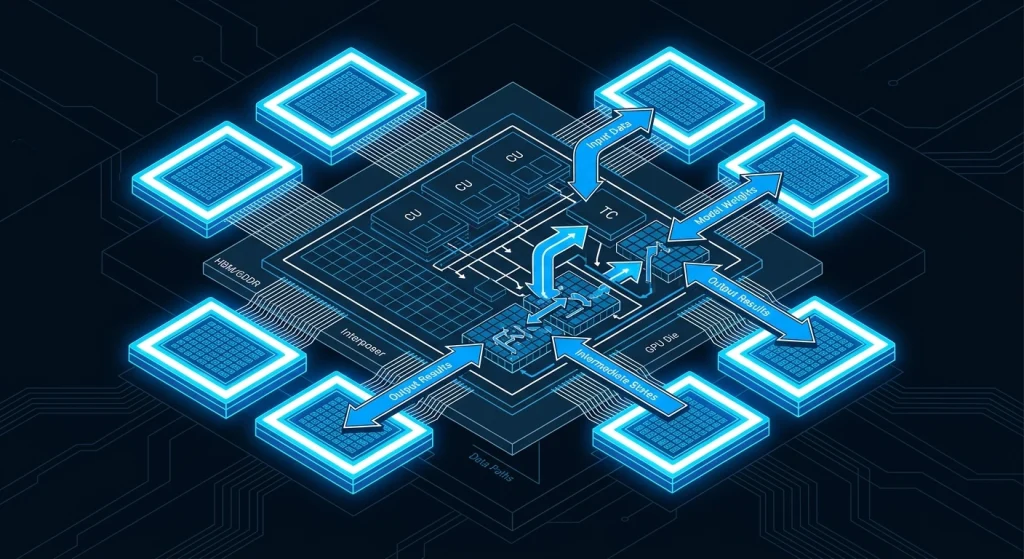
GPU and VRAM Come First
GPU performance has the single biggest impact on AI workloads. Specifically, VRAM determines which models you can load and how large your batch sizes can be.
In 2026, 8GB VRAM is the absolute floor for experimentation. 12GB gets you into practical territory. 16GB is the sweet spot for most developers doing serious local work. And 24GB+ opens the door to training larger models without constant memory management.
NVIDIA’s CUDA ecosystem still dominates. PyTorch, TensorFlow, and virtually every ML framework runs fastest on NVIDIA GPUs. This isn’t a preference — it’s the reality of software support in 2026.
RAM: More Than You Think
32GB of system RAM is the baseline for AI work. Your ML pipeline, Docker containers, data preprocessing, IDE, and model serving all compete for memory simultaneously. I’d recommend 64GB for anyone doing regular training work, and 128GB if you’re handling large datasets or running multiple models.
Storage: Speed and Capacity
A 1TB NVMe SSD is the minimum. Datasets are large, model checkpoints pile up, and slow storage creates bottlenecks during data loading. If you work with image or video datasets, 2TB is the practical starting point.
Suggested Reading: Best Barbecue Grills For Your Home Get-Togethers Parties
Best Laptops for AI Workload
Laptops provide easy access and portability to all your work. If you are looking for a machine which can move with you while keeping all your work accessible, here are some of the best laptops which you can buy for AI Workloads.
Best for Inference and Development: Apple MacBook Pro 16″ M5 Max
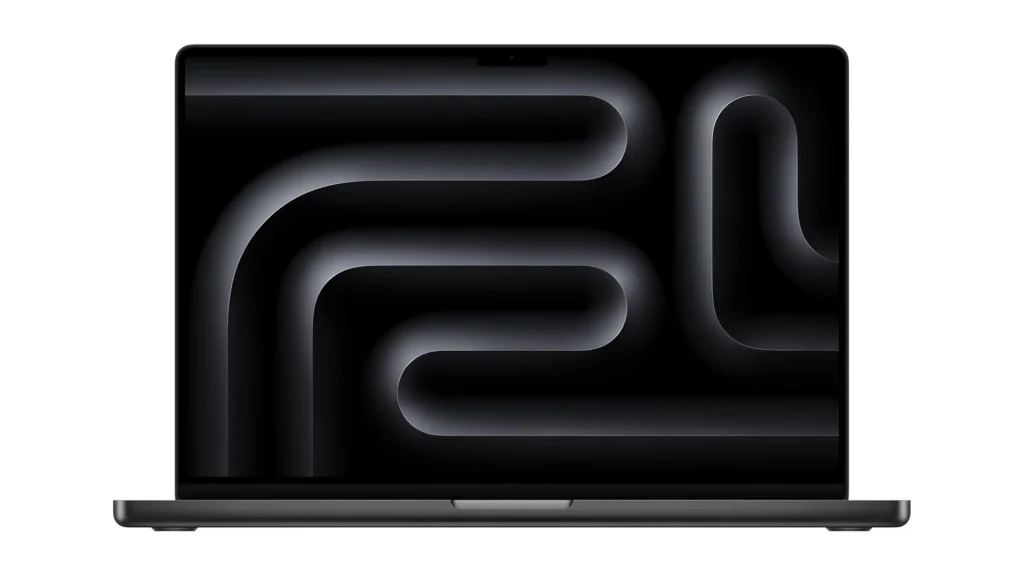
Price: Starting at $3,899 Key specs: M5 Max (18-core CPU, 40-core GPU), up to 128GB unified memory, 2TB+ SSD, Thunderbolt 5
I recommend the MacBook Pro M5 Max for anyone whose primary AI work involves running local LLMs, inference pipelines, and development workflows. The unified memory architecture means your entire 128GB pool is accessible to both CPU and GPU — no separate VRAM limitation.
Why this machine: The 614GB/s memory bandwidth handles large model inference smoothly. I can run quantized 70B models locally with acceptable speed. The battery life means I can work anywhere, and the build quality is exceptional.
The catch: No CUDA support. If your workflow depends heavily on PyTorch CUDA kernels or you need to train models that require NVIDIA-specific optimizations, this isn’t your machine. Apple’s MLX framework is maturing fast, but the ecosystem gap is real.
Best for: ML engineers doing inference-heavy work, developers building AI applications, anyone who values portability alongside power.
Best for Local Training: Lenovo Legion Pro 7i Gen 10
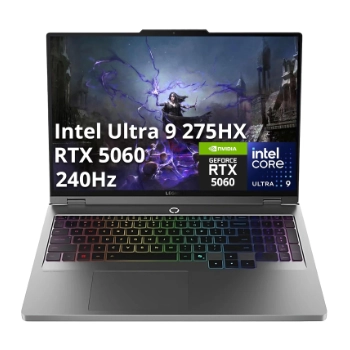
Price: $2,000–$2,500 (frequently on sale) Key specs: NVIDIA RTX 5080 (16GB GDDR7), Intel Core Ultra 9 275HX, 64GB DDR5, 1TB NVMe SSD
This is my pick for developers who need to train models locally and want the full NVIDIA CUDA stack. The RTX 5080 with 16GB VRAM handles fine-tuning 7B–13B models with LoRA, computer vision training on medium datasets, and running inference on larger quantized models.
Why this machine: Price-to-performance is outstanding. You get 16GB of VRAM with Blackwell architecture tensor cores, 64GB of system RAM, and a cooling system designed for sustained loads — all for around $2,000 when sales hit. The 16-inch OLED display is a bonus for visualization work.
The catch: It’s a gaming laptop chassis — large, heavy, and not subtle. Battery life under AI workloads is minimal. You’re essentially buying a portable workstation.
Best for: Data scientists who train locally, CUDA developers, anyone who needs high VRAM without spending $3,500+.
Suggested Reading: Best Home Security Camera’s to Protect Your Home
Best Budget Entry: MacBook Air M5
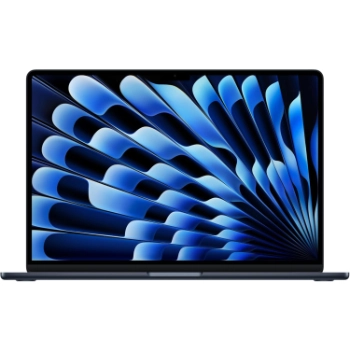
Price: Starting at $1,099 Key specs: M5 chip (10-core GPU), 16–24GB unified memory, 256GB–2TB SSD
If you’re learning ML, prototyping with smaller models, or doing cloud-first development with local testing, the MacBook Air M5 punches surprisingly hard for the price.
Why this machine: At $1,099, you get a capable ML development environment. Python, Jupyter notebooks, and smaller model inference all run well. The 18-hour battery life means uninterrupted work sessions. And when you outgrow local compute, you can SSH into cloud GPUs.
The catch: 16GB of memory limits what you can run locally. No discrete GPU means serious training isn’t happening on this machine. It’s a development and prototyping tool, not a training rig.
Best for: Students, cloud-first ML engineers, developers who run training on remote servers but need a solid local environment.
Best Desktops for AI Workload
Desktops consistently deliver 30–50% better AI performance than laptops at the same price point. Sustained cooling, full-power GPUs, and upgradability make them the better choice if portability isn’t essential.
Best Mid-Range Desktop: Custom Build with RTX 5080
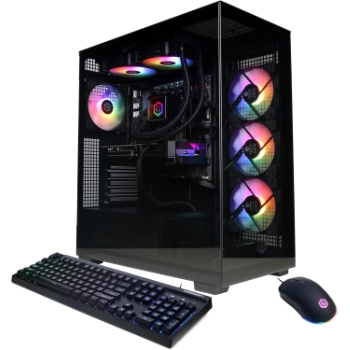
Price: $2,500–$3,500 (built or prebuilt) Key specs: RTX 5080 16GB, Ryzen 9 9900X or Intel Core i7-14700K, 64GB DDR5, 2TB NVMe
A desktop RTX 5080 runs at full 300W power draw versus the laptop version’s constrained thermal budget. That translates to roughly 20% more sustained performance during training runs.
Why this build: The RTX 5080 desktop card offers 960 GB/s memory bandwidth with 5th-gen tensor cores. You can fine-tune 7B–13B models efficiently, run inference on quantized 70B models, and handle most computer vision training tasks. At this price point, nothing else matches the compute-per-dollar.
Where to buy: Micro Center’s PowerSpec G722 ($2,699) pairs an RTX 5080 with a Ryzen 7, 32GB RAM, and 2TB SSD as a ready-to-go option. CyberPowerPC and Empowered PC also offer configurable builds in this range.
Best for: Developers with a dedicated workspace who want maximum training performance under $3,500.
Best High-End Desktop: RTX 5090 Workstation
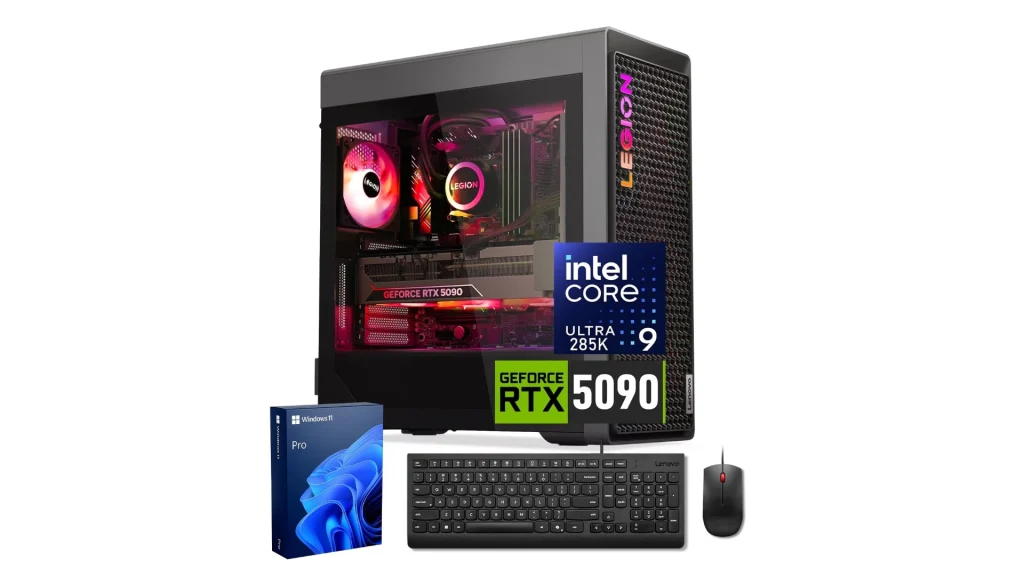
Price: $5,000–$9,000 (prebuilt workstation) Key specs: RTX 5090 32GB GDDR7, Ryzen 9 9950X or Core i9, 128GB DDR5, 4TB NVMe
If you’re training models from scratch, working with large datasets daily, or running multi-hour training sessions, the RTX 5090’s 32GB VRAM is the target.
Why this build: 32GB of GDDR7 means you can load full-precision models that won’t fit in 16GB. You can fine-tune 13B+ models without aggressive quantization, train diffusion models, and handle batch sizes that would crash a 16GB card. The Puget Systems Peak ($7,000+) is my recommendation for a prebuilt — validated cooling, quiet operation, and excellent support.
The reality check: The RTX 5090 currently sells at 65% above MSRP due to supply constraints. You’re paying $2,900–$3,500 for the GPU alone. That’s significant. But if training is your daily work, the time saved pays for itself.
Best for: ML researchers, AI startups doing serious training, anyone whose productivity depends on fast iteration with large models.
Suggested Reading: Best Solar Enabled Outdoor Lights For Environment-friendly Setup
Best Budget Desktop for Cloud-First AI: Apple Mac Mini M4
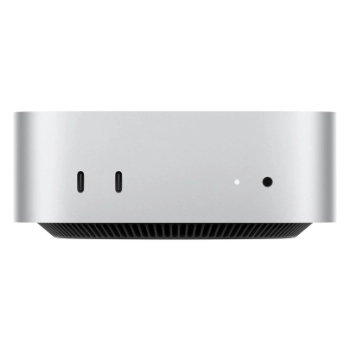
Price: Starting at $799 (M4) / $1,399 (M4 Pro) Key specs: M4 with 10-core CPU, 10-core GPU, 16GB unified memory, 512GB SSD. M4 Pro upgrades to 24GB memory and 12-core CPU.
The Mac Mini is the sleeper pick that the PC-focused guides overlook entirely. At $799, it’s the cheapest way into a capable AI development environment — and it sips roughly $25 per year in electricity.
Why this machine: If your workflow is cloud-first — training on remote GPUs but developing, testing, and running inference locally — the Mac Mini handles that beautifully. The M4’s Neural Engine is optimized for transformer architectures, delivering up to 40% faster token generation versus the M3 generation. You can run quantized 7B models locally for testing, then push training jobs to cloud instances.
The upgrade path: The M4 Pro at $1,399 with 24GB unified memory is the real sweet spot. Configure it with 64GB for $1,999 and you’re running 30B-class models at 12–18 tokens per second locally. That’s a full local LLM setup for under $2,000 in a box smaller than most routers.
The catch: Same as any Apple Silicon — no CUDA. Your local training options are limited to Apple’s MLX framework or CPU-bound PyTorch. This is a development and inference machine, not a training rig. But for cloud-first workflows where you SSH into NVIDIA instances for the heavy lifting, it’s unbeatable value.
Best for: Cloud-first AI developers, anyone building LLM applications locally, teams that train remotely but need a quiet and efficient local development machine.
Best Budget Desktop for Local Training: Custom Build with RTX 4060 Ti
Price: $1,200–$1,700 Key specs: RTX 4060 Ti 16GB, Ryzen 7 7700X, 32GB DDR5, 1TB NVMe
Don’t overlook the previous generation. The RTX 4060 Ti with 16GB VRAM is still a capable AI card at a fraction of the RTX 50-series pricing.
Why this build: At under $1,700 total build cost, you get 16GB of VRAM for inference and light training work. CUDA support is identical. The tensor cores are a generation older, so training is slower — but for prototyping, local LLM inference, and learning, it’s excellent value.
Best for: Hobbyists, students, developers building AI applications who need local inference without a massive budget.
The NPU Question: Does It Matter?
Every 2026 laptop advertises an NPU. Intel, AMD, and Qualcomm all ship dedicated neural processing units. But here’s the honest truth: for actual AI development and ML training, NPUs are nearly irrelevant today.
NPUs handle lightweight on-device inference — things like background noise removal, camera effects, and Windows Copilot features. They don’t replace a proper GPU for training. They can’t run PyTorch. Their software ecosystem is fragmented.
I’d ignore NPU specs entirely when choosing a machine for AI workloads. Your GPU and VRAM are what determine performance.
My Decision Framework
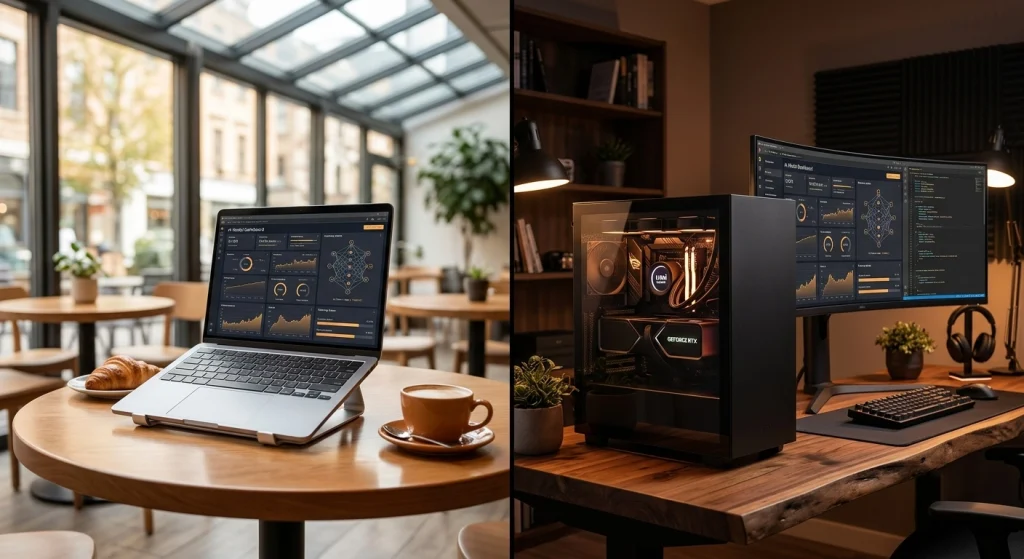
After testing multiple configurations, here’s how I’d spend my money:
| Budget | Best Choice | Why |
|---|---|---|
| Under $800 | Mac Mini M4 (desktop) | Cheapest capable AI dev machine, perfect for cloud-first workflows |
| $1,000–$1,500 | MacBook Air M5 (portable) or Mac Mini M4 Pro (desktop) | Portability vs more memory — both great for dev + inference |
| $2,000–$2,500 | Lenovo Legion Pro 7i (laptop) or RTX 5080 desktop | Full CUDA support, 16GB VRAM, real local training capability |
| $3,000–$4,000 | MacBook Pro M5 Max (inference) or RTX 5080 desktop build (training) | Depends on whether you prioritize portability or raw training speed |
| $5,000+ | RTX 5090 desktop workstation | Maximum local training capability, no compromises |
The right answer depends on one question: do you train models, or do you primarily run them? Training demands NVIDIA CUDA and raw VRAM. Inference and development work beautifully on Apple Silicon with its unified memory pool.
Frequently Asked Questions
What is the minimum VRAM needed for AI work in 2026?
The minimum VRAM for practical AI work in 2026 is 12GB. While 8GB allows basic experimentation with small quantized models, 12GB is where you can comfortably run 7B parameter models and handle light fine-tuning. For serious training work, 16GB is the recommended starting point.
Can I use a MacBook for machine learning?
MacBooks are excellent for ML inference, development, and prototyping — especially the M5 Pro and M5 Max with their large unified memory pools. The limitation is CUDA: most training frameworks run fastest on NVIDIA GPUs. If your workflow is inference-heavy or cloud-training with local development, a MacBook is ideal. If you need to train locally on CUDA, choose an NVIDIA-equipped machine instead.
Is a desktop or laptop better for AI workloads?
Desktops deliver 30–50% better performance than laptops at the same price for sustained AI workloads. Full-power desktop GPUs run at higher wattage, cool more effectively during long training runs, and offer upgrade paths. Choose a laptop only if you genuinely need portability for your work — otherwise, a desktop provides significantly more compute per dollar.
Should I buy an RTX 5090 or use cloud GPUs instead?
The RTX 5090 makes financial sense if you train models daily and would spend $500+ per month on cloud GPU instances. At $3,000–$3,500 current street price, the break-even point versus cloud compute is roughly 6–8 months of heavy usage. For occasional training — a few times per week — cloud GPUs like AWS or Lambda Labs are more cost-effective.
Do I need an NPU for AI development?
NPUs in 2026 laptops do not help with AI development or model training. They handle lightweight inference tasks like background effects and voice processing. Your GPU (discrete NVIDIA or Apple Silicon) is what powers real AI workloads. Ignore NPU marketing when choosing a machine for ML work.